In this article
Sportzfy TV on a big screen is the best way to enjoy a full cricket match or a late-night football game. The good news is that the same Sportzfy APK you use on your phone also works on Android TV, Google TV and Amazon Firestick. In this guide you will learn which TVs are supported, how to install Sportzfy TV on Firestick and Android TV step by step, and how to fix the most common TV problems.
Quick answer: Sportzfy TV works on Android-based TVs and Fire TV devices. Install the free Downloader app, allow it to install unknown apps, then download and install the Sportzfy APK. Samsung, LG, Roku and Apple TV do not support it directly.
What Is Sportzfy TV?
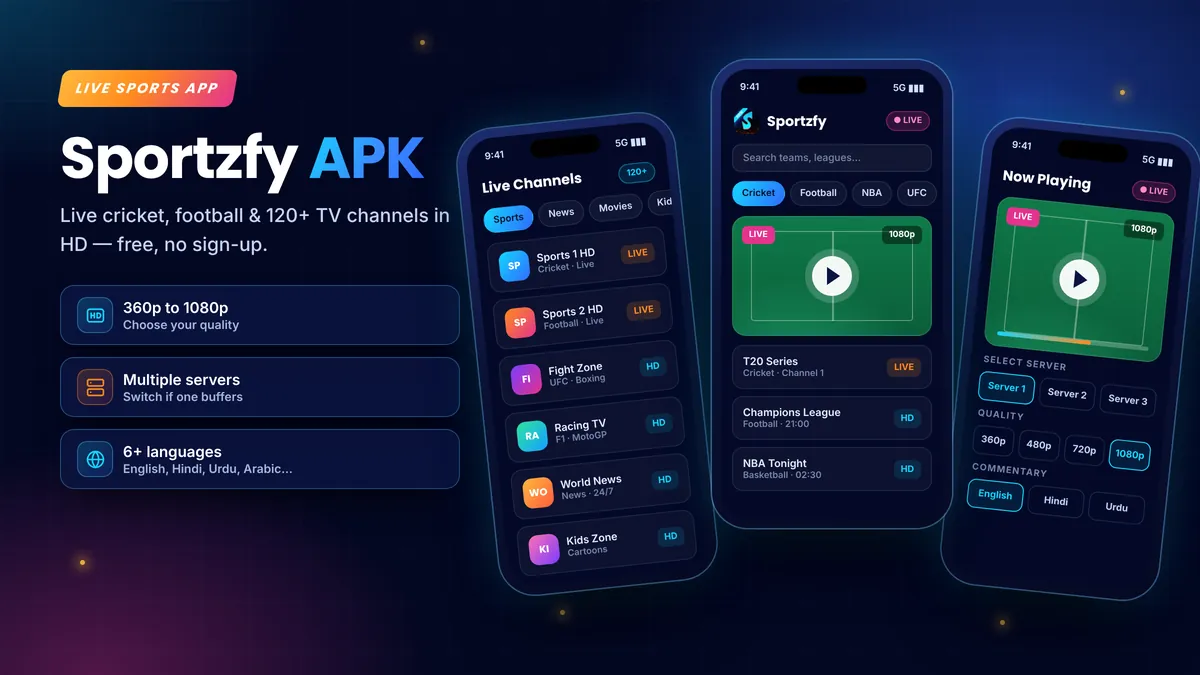
"Sportzfy TV" is simply the name many fans use for the Sportzfy app when they watch on a television. There is no separate TV app. The latest Sportzfy APK v32.0 runs on phones, tablets and TV devices that use Android, with live cricket, football, basketball, tennis and more in up to 1080p.
Which TVs and Devices Support Sportzfy TV?
Supported
Devices that run Android TV, Google TV or Fire OS.
- Amazon Fire TV Stick
- Fire TV Cube
- Android TV boxes
- Google TV (Chromecast with Google TV)
- Sony, TCL, Xiaomi and other Android smart TVs
Not supported directly
These systems cannot install APK files. Use casting or a Fire TV Stick instead.
- Samsung (Tizen)
- LG (webOS)
- Roku
- Apple TV
How to Install Sportzfy TV on Firestick
Step 1: Install Downloader
From the Fire TV home screen go to Find > Search, type "Downloader" and install the orange Downloader app by AFTVnews. It is free.
Step 2: Allow unknown apps
Open Settings > My Fire TV > Developer Options > Install unknown apps and switch it ON for Downloader. If you cannot see Developer Options, open Settings > My Fire TV > About and click your device name seven times to unlock it.
Step 3: Open our download page
Launch Downloader, allow storage access, and type sportzsfyapk.com in the URL box. The page opens in Downloader's built-in browser.
Step 4: Download the APK
Use the remote to select the Download APK button. Downloader saves the file and opens the installer automatically.
Step 5: Install Sportzfy
Click Install. When it is done, choose Delete to remove the APK file and save storage space on your stick.
Step 6: Open and watch
Go to Your Apps & Channels, open Sportzfy, pick a live match and choose a server.
How to Install Sportzfy on Android TV and Google TV
The process is almost the same as on Firestick:
- Open the Google Play Store on your TV and install Downloader.
- On Android TV go to Settings > Device Preferences > Security & restrictions > Unknown sources and turn on Downloader.
- On Google TV first enable developer mode: open Settings > System > About and click "Android TV OS build" seven times. Then go to Settings > Apps > Security & restrictions > Unknown sources and allow Downloader.
- Open Downloader, enter sportzsfyapk.com, download the APK and press Install.
- Find Sportzfy in your apps list and add it to your favourites for quick access.
No Downloader? You can also copy the APK to a USB drive on your computer, plug it into the TV and open it with a file manager app such as File Commander or X-plore.
Have a Samsung or LG Smart TV?
Samsung and LG TVs use their own systems, so you cannot install the APK on them. You still have two easy options:
- Cast from your phone: Play the match in Sportzfy on your Android phone and use the cast or screen mirroring option to send it to your TV.
- Add a Fire TV Stick: A Fire TV Stick plugs into any HDMI port and turns a normal TV into a device that can run Sportzfy.
Want to use a laptop instead? Follow our guide to Sportzfy for PC and connect your laptop to the TV with an HDMI cable.
Tips for Using Sportzfy with a TV Remote
- Use the arrow keys to move between matches and the centre button to open a stream.
- If a button cannot be selected with the remote, install a free mouse cursor app such as Mouse Toggle on Firestick.
- Pick the highest-quality server for your internet speed. 1080p needs a fast and stable connection.
- Use 5 GHz Wi-Fi or an Ethernet adapter for big live matches.
Fixing Common Sportzfy TV Problems
Problem: "App not installed"
Solution- Free up storage by deleting unused apps.
- Uninstall any old Sportzfy version first, then install again.
Problem: Downloader is blocked
Solution- Turn on "Install unknown apps" for Downloader.
- Restart the TV after changing the setting.
Problem: Buffering on Firestick
Solution- Clear the Sportzfy cache in Settings > Applications.
- Switch to another server or lower the quality.
Problem: App does not open
Solution- Force stop the app and open it again.
- Update to the latest Sportzfy version.
Turn your TV into a sports screenDownload the latest Sportzfy APK for Firestick and Android TV.
Download APKFAQs About Sportzfy TV
Is Sportzfy TV a different app from Sportzfy?
No. Sportzfy TV is the same app. The same APK works on Android phones, Android TV, Google TV and Firestick.
Can I install Sportzfy on a Samsung or LG smart TV?
Not directly. Samsung and LG TVs cannot install APK files. Cast from an Android phone or connect a Fire TV Stick instead.
Is Sportzfy available on the Amazon Appstore?
No. Sportzfy is not on the Amazon Appstore or Google Play Store, so you install it with the Downloader app.
Does Sportzfy TV work on Roku?
No. Roku does not support Android apps. You can cast from your phone if your Roku supports screen mirroring.
How do I update Sportzfy on Firestick?
Download the newest APK with Downloader and install it over the old version. Your app will be updated without deleting it first.
Conclusion
Installing Sportzfy TV on Firestick, Android TV or Google TV takes only a few minutes with the Downloader app. Allow unknown apps, open our website, download the APK and start watching live sports on the big screen. If you use a Samsung or LG TV, casting from your phone or adding a Fire TV Stick is the easiest way. Get the latest version from the Sportzfy APK homepage.
Sportzfy APK — latest versionFree live sports & TV streaming app for Android, TV and PC.
Download APK